Interfaces
Image Transformation API
Image representations are generated on-the-fly by applying the necessary transformations. There is no need to define the formats in advance and pre-generate images.
To reduce the load on the Image Service we highly recommend using a CDN - provided by Axinom or your own.
The Image Transformation API provides a single endpoint /transform accessible with an HTTP GET verb.
The request shall be formatted as seen below:
https://image.service.eu.axinom.net/transform/$environment-specific-identifier/$filename?parameter=value
The part https://image.service.eu.axinom.net/transform/$environment-specific-identifier/$filename is called the "Transformation Base URL".
It can be found on the Image Detail station in the Management System or acquired using the GraphQL Admin API.
Transformation Base URL on the Image Detail station

environment-specific-identifiercontains encoded information about the tenant and environmentfilenameis a unique name for the file generated by the system. It is not the original filename for the purposes of security and uniqueness.
Supported URL parameters are described in the table below:
| Parameter | Comment | Example | Default |
|---|---|---|---|
| w | Desired width in px | 400 | Width of the original image |
| h | Desired height in px | 300 | Width of the original image |
| f | Desired image format | 'jpg', 'png', or 'webp' | jpg |
| focalX, focalY | Manual overwrite for the focal point. It is a decimal between 0 and 1, where 0 is the left/top and 1 is the right/bottom. The middle of an image is (0.5,0.5) | 0.2 | Focal point configured in the management system |
Example:
https://image.service.eu.axinom.net/transform/16b0tks5rqq2qoobqvo5fxhfj-8j0cretxi7muq1cgjvp4fwurw/WXe4hVRanMNaAPsXtmMX6E.jpg?w=400&h=100&focalX=0.2&focalY=0.9&f=webp
It’s enough to specify either the width or the height of the image; the other dimension will be calculated based on the original aspect ratio.
Consider that if asked for the dimensions beyond the size of the original, the service will deliver the original size instead.
Transformation logic described
Let’s assume the following:
- we have an image with the dimensions W x H
- we want to transform it to the dimensions w x h (the target)
- the focal point is set to (focalX, focalY).
The transformation logic is as follows:
- Calculate the aspect ratios of the original image (R=W/H) and the target image (r=w/h).
- Find the largest rectangle (the overlay) with the aspect ratio r that still fits into the original image. If r>R, the rectangle will be as wide as the original image and as high as the original image divided by r. If r<R, the rectangle will be as high as the original image and as wide as the original image multiplied by r.
- Place the overlay over the original image so that the focal point is inside of it and is located most closely to the center of the overlay.
- Crop the original image to the size and placement of the overlay. This may crop away areas on one side of the overlay or on both sides of the overlay.
- Scale the cropped image to the target dimensions (w x h). This preserves the aspect ratio. In case the cropped image is smaller than the target dimensions, take the cropped image without scaling.
Example:
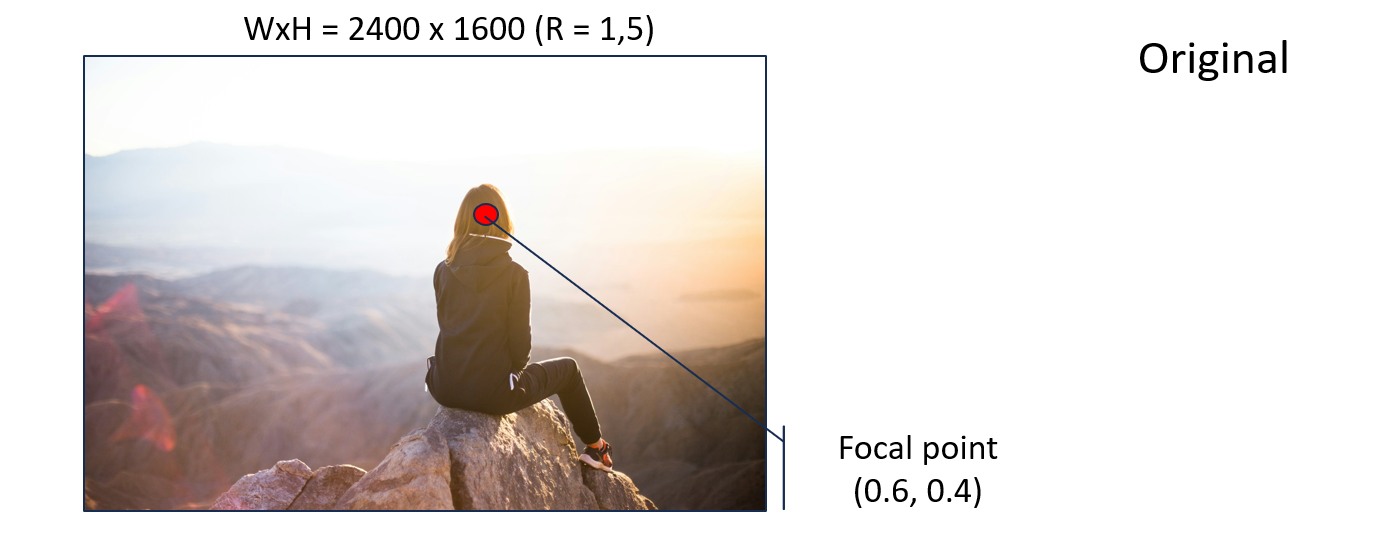
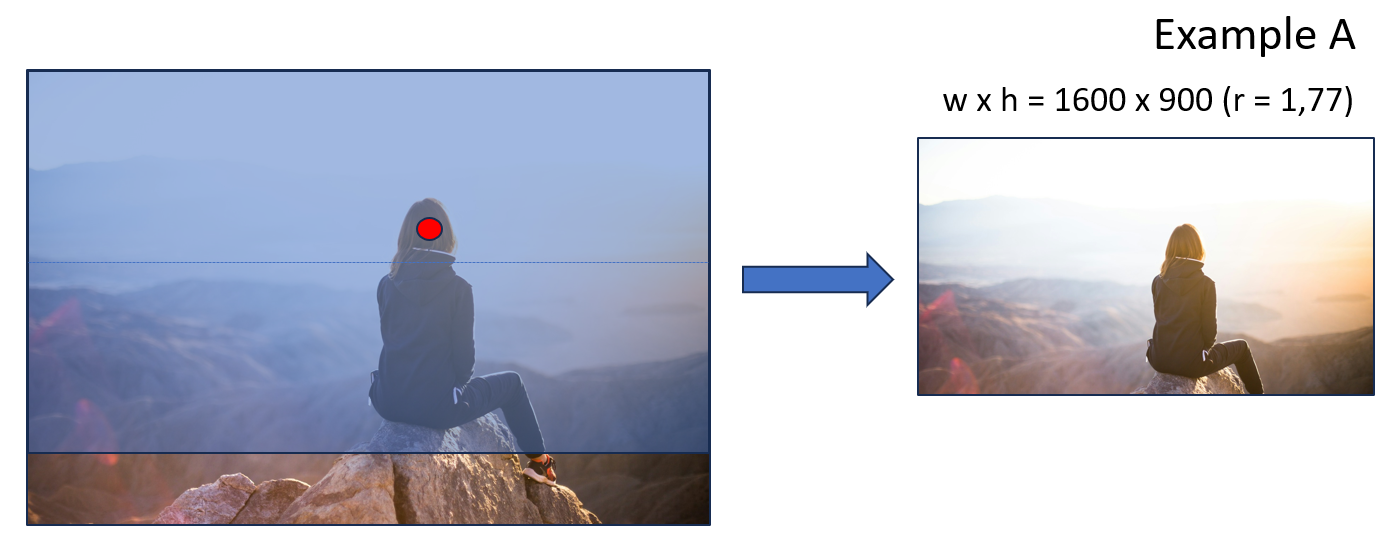
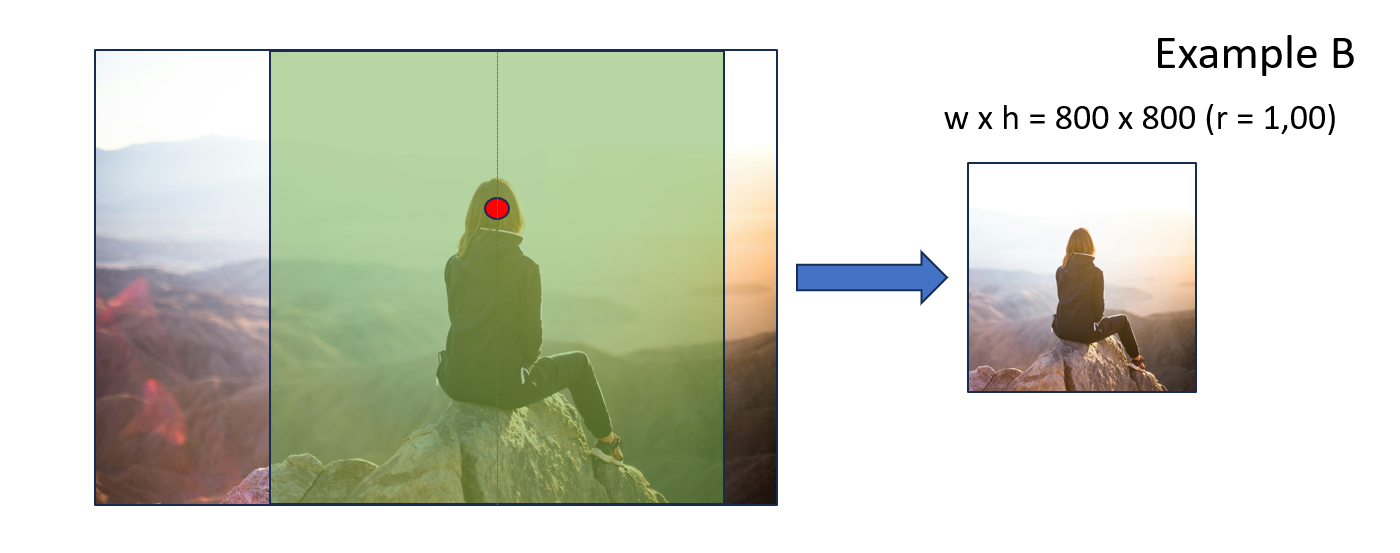
Original image dimensions: 2400x1600 (R=1.50)
Example A: target dimensions 1600x900 (R=1.77)
Example B: target dimensions 800x800 (R=1.00)
GraphQL Admin API
This API provides read- and management access to all data inside the Image Service.
Endpoint: https://image.service.eu.axinom.net/graphiql
To use the API, you need a JWT from the Identity Service (see How to authenticate a service account).
GraphQL mutation uploadImage can be used to upload a new image.
Parameters:
- Image File
- Image Type.
Altair endpoint - https://image.service.eu.axinom.net/altair/ - can be more convenient interface to upload files via GraphQL.
Messaging
Image Service supports a number of commands and events.
See also: Messaging.
Webhook
Image Service supports a webhook called every time when an image is uploaded. For example, such a webhook can verify if the image type or size matches the business rules of the application.
If a webhook is configured, the Image Service sends a POST request to the specified URL after any image is uploaded with the following payload:
Image upload webhook request payload
| Property | Description | Data Type |
|---|---|---|
| image_name | Original Image Name. | string |
| size | Size of the image in bytes. | number |
| width | Number of pixels wide. | number |
| height | Number of pixels high. | number |
| format | Name of the decoder used to compress image data. e.g. jpeg, png, webp, gif, svg | string |
| has_alpha | Boolean indicating the presence of an alpha transparency channel. | boolean |
| image_type | Type of Image as defined in the Image Service. e.g. MOVIE_COVER | string |
The webhook can run any validation based on the payload data and return an array of errors:
{
    errors: {
        message: string;
        code: string;
    }[];
}
If the array is empty, the image is accepted. If the array is not empty, the image is rejected and the API returns specified errors as the "reason".
See also: Secure implementation of webhooks in Mosaic.
Server-side Download
There is a command initiating image download from a configured image storage.
Parameters:
- Image relative path in the image storage (e.g. "/images/covers/avatar.jpg")
- Image type that defines which image formats to create (e.g. "movie_cover").
- Optionally, a list of tags to add to the image
- Optionally, a correlation ID.
Ingest
Ingest feature implemented in the Media Service allows to create and link an image (cover) for each ingested entity downloading them from a pre-configured Image Storage. Ingest uses the interface described above under Server-side Download.